Publishing That Explains Itself: Never Guess Why a Course Won't Publish
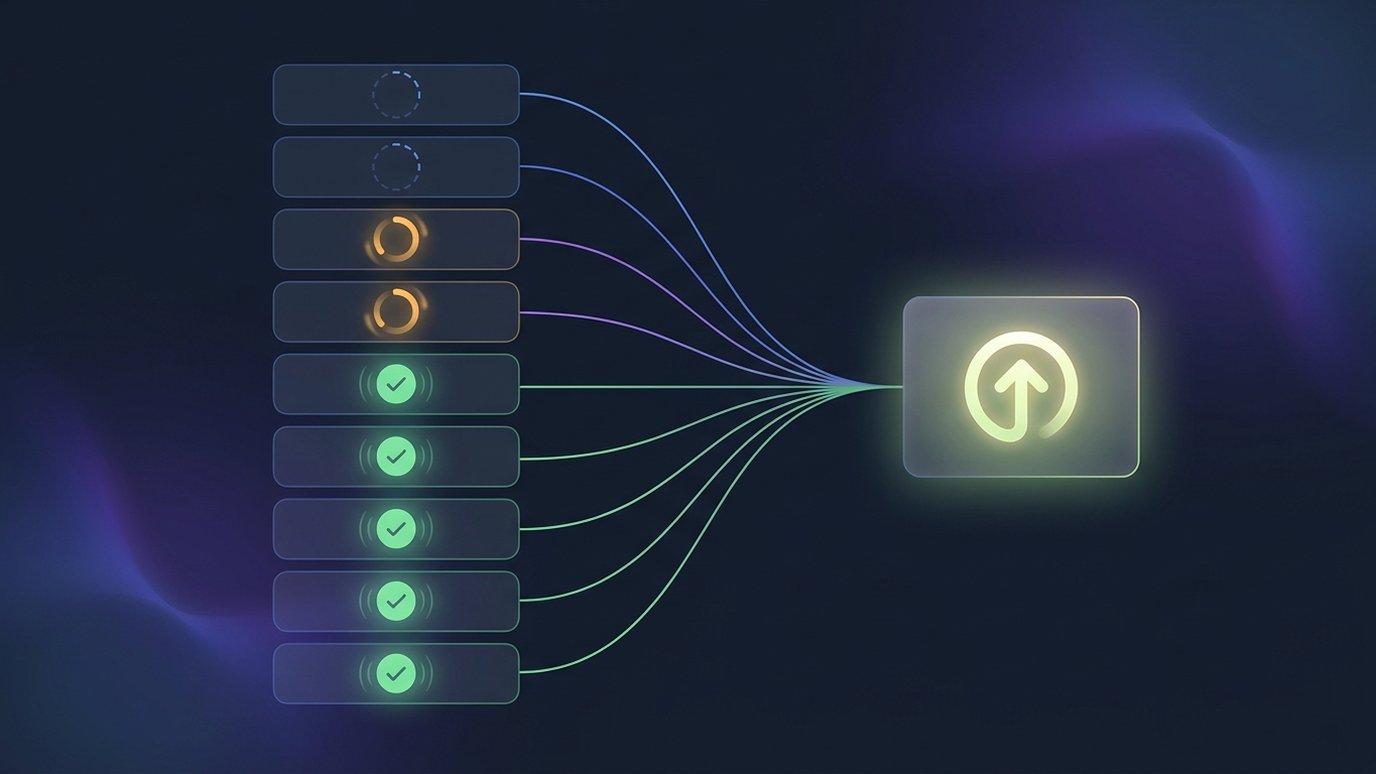
Getting a course into an LMS should be the easy part. In EduGears AI Studio you author a course, hit publish, and hand out a single access code that carries the live course into any LTI 1.3 LMS. Publish once, deliver everywhere. But there's a moment that used to sour the whole thing: you click Publish, and nothing happens — or a button sits there greyed out — and you're left guessing which corner of a multi-module course isn't ready.
This release fixes that moment, and smooths the road that leads up to it. Publishing now explains itself, and the generation steps before it bend to how you actually work.
The old guesswork
A course is only ready to publish when its learner-facing modules actually have content in them. That's a reasonable rule — you don't want to ship a course with an empty Week 4. The problem was never the rule; it was that the rule was silent. A big course with a dozen modules gave you a single unhelpful signal, and finding the one module that was still generating meant opening each one to check.
A gate that won't tell you why it's closed isn't protecting you — it's just making you do its job by hand.
Publishing that explains itself
Now, when you click Publish on a course that isn't ready — from the course header or straight from My Courses — a “Not ready to publish” dialog opens and lists each blocking module by name, with the exact reason next to it:
- “Still generating…” — the module's content is on its way; give it a moment.
- “No content yet” — the module is empty and needs something in it before it can go out.
You fix the list instead of hunting for it. And when everything's ready, the same dialog says so — you confirm, and the course publishes to its access code. The button stopped being a riddle.
Hide a module, and it stops blocking
The dialog also carries a hint that saves a lot of dead ends: hiding a module from learners takes it out of the readiness check entirely. A hidden module never blocks publishing. So a unit you're still drafting, a bonus section you're not ready to show, or a placeholder you'll fill in next week doesn't hold the whole course hostage — hide it, publish what's ready, and unhide it when it's done. Republishing pushes the change live to every institution instantly.
Generation that bends to how you work
Most of the time, “not ready” just means “not generated yet.” So this release also made the generation steps quicker to get through and less rigid about what they need from you.
Generate modules from a description alone
The Generate modules dialog no longer insists on files. Describe or paste the content instead — a syllabus outline, a topic list, a page of notes — and generate the module structure from that. Files still work exactly as they did; they're simply optional now, and the dialog says so.
Start a course with several reference documents
When you create a course, the Curriculum Intelligence section now takes up to five documents at once — PDF, Word, PowerPoint, text, or Markdown — each with its own chip and an add-more picker. Previously the picker took a single file at create time and you attached the rest afterward. Now you seed the whole course's source material in one pass, and every later generation is grounded in all of it.
Lesson generations queue instead of blocking
Inside the module editor, starting one lesson's generation no longer freezes every other lesson's Generate panel. Kick off several back-to-back: later ones show “Queued” and run in turn, and a failed lesson never wedges the ones behind it. You line up the work; the queue takes care of the order — which is exactly what makes the whole course reach “ready” without babysitting.
The workflow, start to finish
- Create the course and drop in up to five reference documents — or none, and describe what you want.
- Generate the modules, then queue up lesson generations and let them run.
- Hide anything you're not ready to show; it won't count against publishing.
- Click Publish. If something's not ready, the dialog names it and tells you why.
- Clear the list, publish, and share the access code — live everywhere it's redeemed.
The result is a straight line from draft to published, with a publish step that coaches you the rest of the way instead of leaving you to guess.
See the full publish-to-redeem lifecycle, step by step.
How it works →Why won't my course publish?
Publish it and the “Not ready to publish” dialog lists each blocking module and why — “Still generating…” or “No content yet”. Fix the list, or hide a module from learners to take it out of the check. When everything's ready, the dialog says so and you publish.
Does a hidden module stop a course from publishing?
No. Hiding a module from learners removes it from the readiness check entirely, so a module you're still drafting never blocks publishing. Unhide it later and republish to push it live.
Do I have to upload files to generate a course now?
No. You can generate modules from a description alone — a syllabus outline, a topic list, or notes. Files are optional, and a new course can start with up to five reference documents when you do have them.
Can I generate several lessons at once?
Yes. Start them back-to-back and later generations show “Queued” and run in turn. A failed lesson doesn't wedge the ones behind it, so you can line up a whole module and walk away.
Build your first course free
Design a course with AI in the browser, then publish it to any LTI 1.3 LMS. Your first course is free — just an email to start.
Start free →